
How to make a PDF booklet for printing
A folded booklet needs its pages in a special order: the first and last pages share a sheet, the second and second-to-last share the next one. Doing that by hand is confusing. This guide shows how to let your browser reorder the pages, how to print the result and how to fold it.
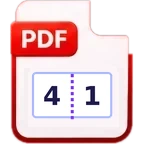
How a booklet is built
In a folded booklet each sheet of paper carries four pages, two on each side. The outer sheet holds the first and last pages on one side and the second and second-to-last on the other. The next sheet holds the third and the third-to-last, and so on towards the middle.
Booklet puts your pages in exactly that order, two to a landscape sheet. When you print it double-sided and fold the stack in half, the pages read in the right order.
- Print a small book, zine or programme.
- Make a handout that folds in half.
- Print a right-to-left book.
- Turn a report into a booklet.
How to make a booklet, step by step
Open Booklet. Your file is processed in your browser and not uploaded.
- Drop your PDF into the box. The preview shows each printed side, front and back.
- Choose the binding: left for most books, right for books read from right to left.
- Choose the sheet size. The same size as the pages, A4 or US Letter are available.
- Press Make booklet and download the PDF.
- Print it double-sided, flipped on the short edge, then fold the stack in half.
Binding and sheet size
Left binding puts the spine on the left, which is right for most books. Choose right binding for books read from right to left, such as Arabic, Hebrew or manga.
The sheet size is the size of the paper you print on. Use A4 or Letter sheets for pages that are half that size, for example A5 pages on an A4 sheet. If your pages are a different size, the same-size option keeps them as they are. Pages keep their proportions and are centred on their half, so nothing is stretched.
Page counts that do not fit
A booklet needs a multiple of four pages. If your document has a different number, the tool adds blank pages at the end so that the last sheet is full. You do not need to prepare the file.
For a thick document, a single stack becomes hard to fold. Choose several booklets of 16, 32 or 64 pages instead. Each one is a smaller stack that you fold separately and bind together.
Printing double-sided
Choose double-sided printing and flip on the short edge. This is the most common mistake: with the long edge the back pages come out upside down. Printers differ, so print a four-page test first and look at how the paper comes out.
If your printer cannot print on both sides, print the odd pages first, put the stack back in the tray as your printer requires, and print the even pages. The test page tells you the right way round.
Related tools
If you only want to save paper, Pages per Sheet puts several pages on one sheet without folding. See How to print multiple pages per sheet. To change the page size first, use Resize PDF Pages.
Privacy and limits
The pages are rearranged in your browser, so a private report or a book never leaves your device.