
What is a PDF? The complete guide to the PDF file format
A PDF is a file that keeps a document looking exactly the same on every phone, computer and printer. This guide explains what a PDF is, what is inside one, the different kinds of PDF, and how to open, edit, convert, shrink and protect them. Every tool mentioned runs privately in your browser, so your files never leave your device.
What does PDF stand for?
PDF stands for Portable Document Format. The word “portable” is the whole point. A PDF is built so that a document can travel from one person to another, and from one device to another, without changing how it looks. The same page that you saw on your laptop appears with the same fonts, the same images and the same line breaks on a phone, in a web browser or on a sheet of paper.
In everyday use the word “PDF” can mean three slightly different things: the file format itself, a file ending in .pdf, or the document inside it. This guide uses it mostly for the file. If you only need a quick action, such as shrinking one, jump straight to Compress PDF, Merge PDF or Edit PDF. If you want to understand how PDFs work so you stop guessing, read on.
A short history of the PDF format
The PDF format was created by the software company Adobe and first released in 1993. The idea came from a practical problem. Offices of that time shared documents between very different computers, and a letter written in one program often looked wrong in another because fonts, margins and images did not match. Adobe wanted a format that worked like electronic paper: whatever the sender saw, the reader would see.
For its first years PDF was an Adobe product. In 2008 it became an open international standard, published as ISO 32000-1. That change mattered, because it meant any company or developer could build software that reads or writes PDF without paying a licence fee. A newer edition, PDF 2.0 (ISO 32000-2), followed in 2017. Today PDF is supported by every major browser, every phone and nearly every operating system, which is a large part of why it became the default format for invoices, contracts, manuals, forms, reports and ebooks.
Why the PDF format exists: the problem it solves
Most document formats are made for editing. A word-processor file describes a flow of text, and the program decides at the moment you open it where each line and page ends. If your computer lacks a font, or the app is a different version, the result can shift. A PDF does the opposite. It stores the finished page. The position of every letter, the exact fonts, the images and the page size are all recorded, so the reader only has to draw what the file describes.
This is why people trust PDF for anything that must not change in transit: a signed contract, a tax form, a price list, a boarding pass or a CV sent to an employer. It is also why a PDF prints reliably and why the page numbers you quote (“see page 12”) stay correct for every reader.

What is inside a PDF file?
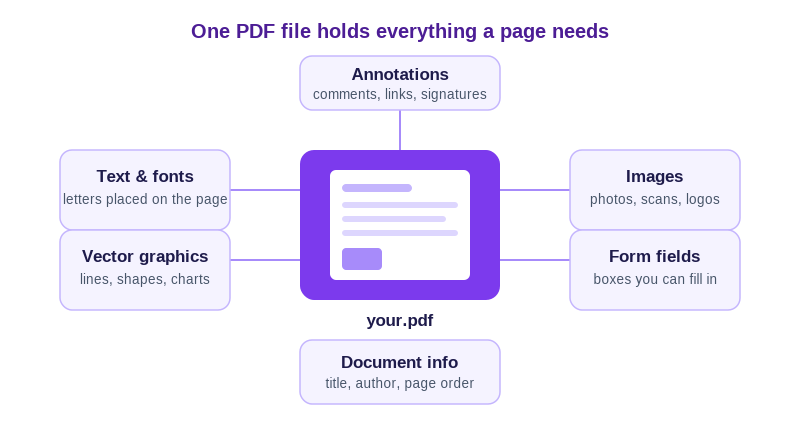
A PDF is more than a picture of a page. Inside one file you can find several kinds of content, and knowing which are present explains most of what you can and cannot do with a document.
The common building blocks are listed below.
- Text and fonts. Letters are stored as characters positioned on the page, together with the fonts needed to draw them. This is what lets you select, search and copy text.
- Images. Photos, logos and scanned pages are stored as pictures, usually compressed with JPEG or a lossless method. Images are normally the biggest part of a PDF’s file size.
- Vector graphics. Lines, shapes and charts are stored as drawing instructions, so they stay sharp at any zoom level.
- Form fields. Boxes, check boxes and drop-downs that a reader can fill in. See Fill PDF Form.
- Annotations. Comments, highlights, links and signatures that sit on top of the page.
- Document information. The title, author, creation date and the page order, often called metadata. You can view and change it with PDF Metadata.
How a PDF file is built
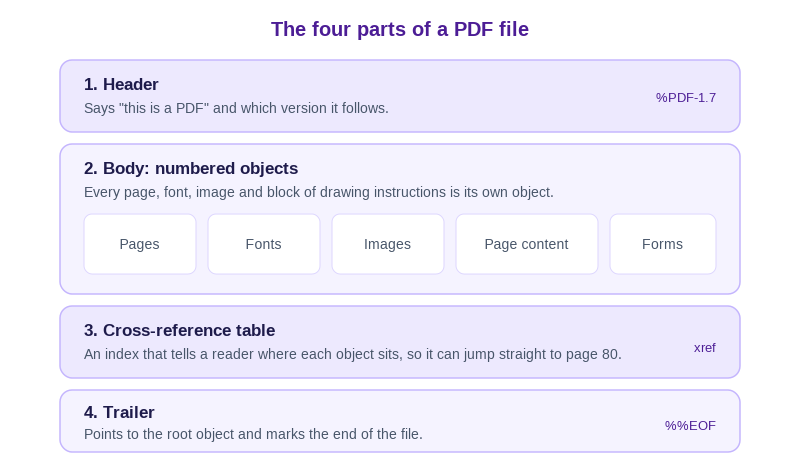
Under the surface a PDF is organised in four parts. The header comes first and declares the version, for example %PDF-1.7. The body holds numbered objects: each page, font, image and block of drawing instructions is its own object. After the body comes a cross-reference table, which works like the index of a book and lets a reader jump straight to page 80 of a 300-page file without reading the first 79. The trailer closes the file and points to the starting object.
This design has practical effects. Because pages are separate objects, tools can reorder, delete or copy pages without redrawing them, which is how Organize Pages, Split PDF and Extract Pages work. It is also why a file that is cut off, for example by an interrupted download, may fail to open: the index at the end is missing. Repair PDF can often rebuild it.
Text PDFs and scanned PDFs: a difference that matters
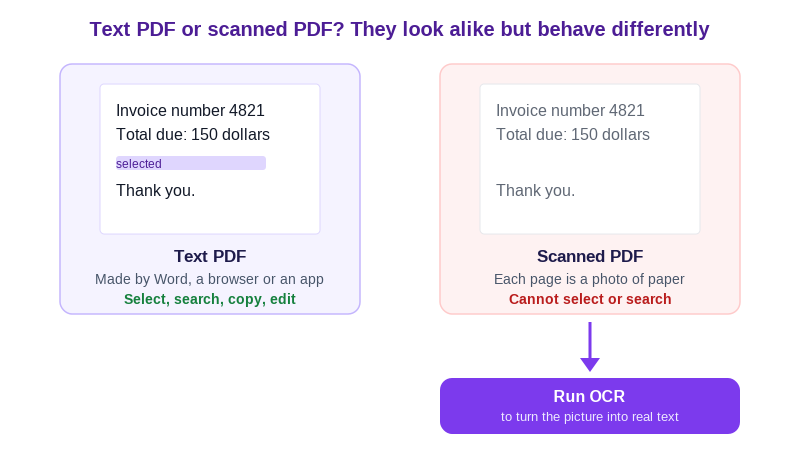
Two PDFs can look identical on screen and still be completely different inside. A text PDF is created by a program such as a word processor, a spreadsheet, a design tool or a browser’s “Save as PDF”. It contains real characters, so you can select a sentence, search for a name and copy a table.
A scanned PDF is created by a scanner or a phone camera. Each page is just a photograph of paper. There is no text inside, only pixels, so you cannot search it, select a word or edit it. This is the single most common reason people say “my PDF will not let me edit”.
The fix for a scan is OCR, short for optical character recognition. OCR reads the picture and adds a hidden layer of real text, producing a searchable PDF. You can do this with OCR PDF, and our guide on how to OCR a scanned PDF walks through it. A third case is a text PDF that was later turned into pictures, for example by an aggressive compressor or a “print to image” step. Those files behave like scans, so always keep the original.
The main kinds of PDF
Besides text and scanned files, several other types are worth knowing.
- Fillable forms. PDFs with interactive fields, such as tax forms and applications. You can type into them and save the result.
- Searchable (OCR) PDFs. A scan that has had a text layer added, so it looks like paper but searches like text.
- Tagged or accessible PDFs. Files with an internal structure of headings, lists and reading order, so screen readers can read them aloud. The PDF/UA standard covers this.
- PDF/A. A strict version meant for long-term archiving. It embeds all fonts and forbids features that could stop a file opening decades later.
- PDF/X. A version for professional printing, with controlled colours and fonts.
- Protected PDFs. Files with a password to open them, or with limits on printing, copying or editing. See the security section below.
When a PDF is the right choice, and when it is not
Choose PDF when the page must stay as it is: for sharing a final version, for printing, for forms, for signatures, for archiving, and for sending a document to someone who may not have the same software. A PDF is also a good format to send because it does not hold editable macros the way some office files can, although you should still open files only from senders you trust.
PDF is a poor choice while a document is still being written. Editing a PDF is possible, but it is not as natural as editing the original. If you expect many rounds of changes, keep the source file in its original format and export a fresh PDF at the end. If you only need a quick correction to a finished file, try Edit PDF, or if you need the content in an editable format, use PDF to Word, PDF to Excel or PDF to Text.
A rough comparison helps. A Word-style document is best for writing and collaboration. A PDF is best for fixed delivery. An image such as a JPG is best for a single picture but weak for multi-page text. A web page is best for screens that resize. Many people keep two copies of an important document: the editable source and the PDF.
How to open a PDF
Almost every device can open a PDF without installing anything. Modern web browsers such as Chrome, Edge, Firefox and Safari show PDFs directly: drag the file into a tab or click a PDF link. Phones and tablets open them in the built-in file viewer or the mail app. Computers also include or offer a dedicated reader, and many office programs can open PDFs too.
If a PDF will not open, the likeliest causes are an incomplete download, a damaged file or a password. Try downloading it again first. If you have the password, enter it when asked. If the file is damaged, Repair PDF can try to recover the pages it can still read.
How to create a PDF
There are four easy ways to make a PDF. The first is to export from the program you wrote the document in: most word processors, spreadsheet apps and design tools have an “Export” or “Save as PDF” command. The second is to print to PDF: choose “Save as PDF” in the print window of any app or browser. The third is to scan a paper document with a scanner or your phone, which gives a scanned PDF. See Scan to PDF and our guide on scanning documents with your phone.
The fourth way is to convert existing files. Photos and screenshots can be turned into pages with JPG to PDF, PNG to PDF or WebP to PDF. Plain text, Markdown and HTML can be turned into clean pages with Text to PDF, Markdown to PDF and HTML to PDF. Combine several PDFs into one with Merge PDF, described in our guide on how to merge PDF files.
How to edit a PDF
What you can change depends on what is inside the file. In a text PDF you can click a line and rewrite it, add new text, draw, highlight, add images and sign. Edit PDF does all of this in your browser, and our guide on editing a PDF for free covers the details.
For a scan, there is no text to edit directly. You have three options: run OCR first, cover the old words with a white box and type new ones on top, or recreate the page. For signatures, use Sign PDF and read how to sign a PDF properly.
Page-level changes are different and always possible. You can rotate pages, crop them, delete pages, reverse their order, add page numbers or add a watermark. These work on any PDF, scanned or not, because they move whole pages rather than the text inside them.
Why some PDFs are huge, and how to make them smaller
File size in a PDF comes mostly from images. A single scanned page saved at high resolution can be several megabytes, while the text on a page is only a few kilobytes. Embedded fonts, repeated images and unused data add more. A 200-page text report may be 1 MB, while a 10-page scan can be 40 MB.
To make a PDF smaller, a good compressor lowers the resolution of large images, re-encodes them more efficiently and removes data nobody needs, while leaving the text, links and forms untouched. Compress PDF works this way, and our guide on how to compress a PDF without losing quality explains which level to choose. If a text document barely shrinks, that is normal: it has few images to reduce.
One warning: some compressors turn every page into a picture to save space. This makes the file small, but the text can no longer be selected or edited. Always compress a copy and keep the original.
PDF security: passwords, permissions and hidden data
A PDF can be protected in two ways. An open password (sometimes called a user password) is required to open the file at all. A permissions password (the owner password) lets anyone open the file but limits actions such as printing, copying or editing. Modern PDFs use strong AES encryption for the open password. Permissions are weaker: they are a request that well-behaved software follows, and some programs ignore them. For truly private documents, rely on the open password. You can add one with Protect PDF, and remove a password you know with Unlock PDF. See also our guides on password-protecting a PDF and unlocking a PDF. Only unlock files that you own or have permission to open.
Another risk is hidden data. A PDF can carry the author’s name, the software used, comments, edit history and even text hidden underneath a black box. Drawing a black rectangle over a word does not remove it: the text is still there and can be copied. Real redaction removes the content itself. Redact PDF turns marked pages into flat images so the hidden text is gone, and our guide on how to redact a PDF explains the steps. Before sharing a file, also clear personal details with PDF Metadata.
If you send a filled form that should no longer change, use Flatten PDF. It turns the fields into fixed page content.
Are online PDF tools safe?
It depends on how the tool works. Many websites upload your file to a server, process it there and send it back. That means a copy of your contract or ID may sit on someone else’s computer for a while. Other tools, including all the ones on this site, run entirely in your browser: the work happens on your own device and the file is never sent anywhere. You can check this yourself: after the page has loaded, turn off your internet connection and try a tool such as Merge or Compress. It still works, because nothing needs to be sent.
For anything sensitive, such as legal papers, medical records or identity documents, choose a tool that processes files locally or an offline program. Our guide Are online PDF tools safe? lists what to look for.
Common PDF problems and how to fix them
The file is too large to email. Use Compress PDF, or Split PDF to send it in parts.
I cannot select or copy the text. The PDF is probably a scan. Run OCR PDF to add text. If you only need the words, try PDF to Text after OCR.
The pages are the wrong way up. Use Rotate PDF to fix single pages or the whole file.
There are blank or unwanted pages. Use Delete Pages or Organize Pages.
I have many small PDFs and need one. Use Merge PDF.
The file will not open or shows an error. Try Repair PDF, and download the file again if it came from email or the web.
I need the content in Word or Excel. Use PDF to Word or PDF to Excel. Complex layouts may need a little tidying afterwards.
I need the pages as pictures. Use PDF to JPG, PDF to PNG or Extract Images to pull out the pictures that are already inside.
I want to see what changed between two versions. Use Compare PDF, which marks added and removed words.
Quick glossary of PDF terms
Short definitions of the terms used in this guide.
- Metadata: information about the file, such as title, author and creation date.
- OCR: software that reads a picture of text and turns it into real, searchable text.
- Flatten: turn editable parts, such as form fields, into fixed page content.
- Embedded font: a font stored inside the PDF so it displays the same everywhere.
- Vector graphic: a drawing described by shapes and lines, sharp at any size.
- Raster image: a picture made of pixels, such as a photo or a scan.
- Annotation: a comment, highlight, link or signature added on top of a page.
- Redaction: permanently removing sensitive content from a document.
- Compression: making the file smaller by encoding data more efficiently or reducing image quality.
- PDF/A: a version of PDF designed for long-term archiving.
Key takeaways
A PDF is a portable, fixed-layout document that looks the same everywhere. It can be a text PDF, a scanned picture or a mix, and that difference decides what you can edit. Images drive file size, so compression works on images, not on text. Passwords protect the opening of a file, and real redaction removes content rather than covering it. When in doubt, keep your original, work on a copy, and use tools that run on your own device so private documents stay private.
Ready to try it? Start with Edit PDF, Merge PDF or Compress PDF, or browse every tool on the home page.